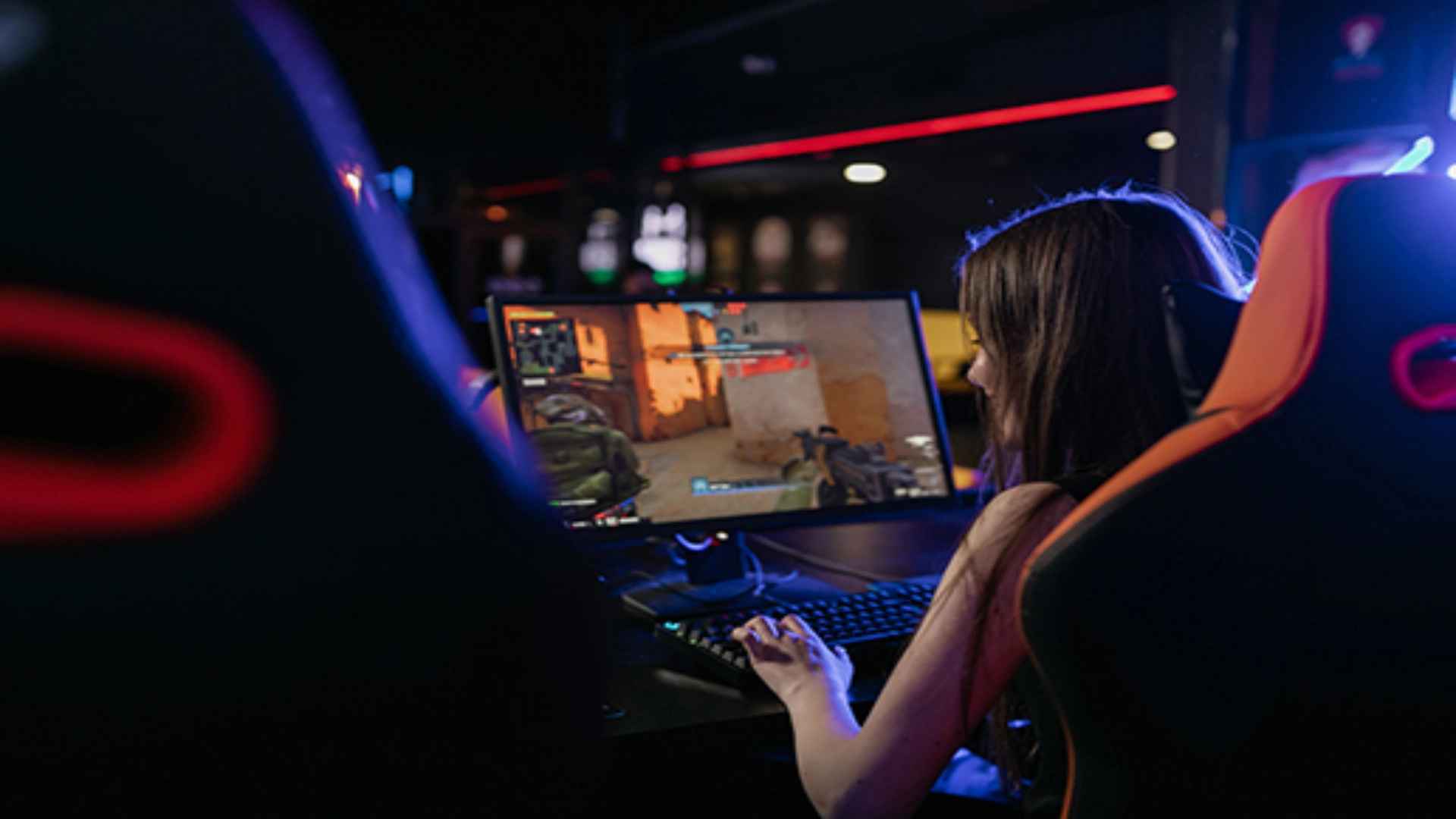
Connecting with friends while gaming on the PlayStation 5 has become seamless thanks to dedicated Discord integration. Many players frequently ask if they can stream their gameplay directly to Discord channels to share their gaming sessions in real time. Fortunately, modern system updates allow users to broadcast their screen directly from the console to voice chats with minimal setup.
How to Link Your Discord Account to Your Console
Before you can share your gameplay with friends, you must link your Discord account to your PlayStation Network profile. Navigate to the Users and Accounts section in your console settings and select Linked Services to find Discord. Follow the on-screen instructions by scanning the QR code or entering the verification code on your mobile device or computer.
Starting a Discord Stream directly from the PS5
Once your accounts are linked, open the Discord app on your phone or PC and join a voice channel. Select the option to transfer your voice chat to the PlayStation console to establish a active connection. Press the Game Base button on your DualSense controller, select the Discord voice card, and choose the Share Screen option to start streaming your gameplay live.
Optimizing Stream Quality and Audio Settings
A stable internet connection is essential for maintaining a smooth frame rate and clear audio during your stream. You can adjust broadcast settings to prioritize performance or video resolution based on your network bandwidth. Make sure your party audio settings permit game sounds and voice chat to be broadcasted so your viewers can hear everything clearly.
Troubleshooting Common Discord Streaming Issues
If the stream fails to connect, verify that both your console system software and the Discord application are updated to the latest version. Unlinking and re-linking your account can also resolve authentication errors or stuck connections. Restarting your network router often solves minor latency issues and ensures a seamless streaming experience for your friends.